



How to fix Kernel Security Check Failure? 8 simple solutions
Share this post


Seeing the blue screen with the message “Kernel_Security_Check_Failure” brings panic and nothing less. This is because your PC crashes and restarts on its own, while you wonder what just broke inside it 😐. Sometimes it happens once. Other times it keeps coming back and makes the system unusable. This crash can happen unexpectedly on Windows 10, Windows 11, or Windows 8.
This error usually means Windows has detected something unsafe or irrelevant inside the system kernel. That sounds serious, but in most cases, Kernel Security Check Failure can be fixed without too much fuss.
This guide will walk you through 8 simple solutions to fix Kernel Security Check Failure. It will explain why this error occurs and how you can avoid it in future. You do not need to be a tech expert to read this article because we are taking it step by step.
What is Kernel Security Check Failure?
“Kernel Security Check Failure,” a Blue Screen of Death (BSoD) error that appears when Windows Kernel finds corruption or inconsistencies in important data that is required for working of the OS.
Windows kernel is the main part of your computer system that manages hardware, memory, and processes. When something goes wrong at that level like a corrupted system file, faulty hardware, incompatible drivers or malware, Windows OS throws up the error in the form of the Blue Screen of Death (BSoD) crash. You will see the “kernel security check failure” error, followed by an automatic restart.
Kernel error shows up like this on the BSOD:
- Stop code: KERNEL_SECURITY_CHECK_FAILURE
What is the Blue Screen of Death (BSOD)?
A BSOD is a critical system error that occurs when Windows operating system faces an unrecoverable error and therefore, it halts working and displays a blue screen with an error message instead of slowing down or completely freezing, and then it reboots. The blue screen displays the particular error message that states the cause of the error.
BSOD displays a sad face :(, a QR code, and the message “Your PC ran into a problem and needs to restart.” and then further down it shows the error code and the error itself.
Behind the scenes, when a BSOD occurs, Windows creates a dump file, which contains details of what was going on when things went south. This file can be helpful for tracking down what caused the BSOD crash. In some cases, resolving the problem might require performing a system restore or a clean installation of the operating system.
Kernel security check failure is one of the many types of BSOD that indicates a significant system problem. If you are seeing it more than once then it needs your urgent attention before it causes system damage or worse, your data loss.
What are the reasons for the Kernel Security Check Failure error?
There is not one single cause. The “kernel security check failure” error means that your system is reacting to something serious happening in it. Most of the time, it comes down to one of these:
Incompatible or outdated drivers
Drivers are the go-betweens for your operating system and hardware. If a driver is buggy, outdated, or not compatible, it can start acting up, such as accessing memory it should not be touching. That is when the kernel steps in and shuts everything down to keep things from getting damaged.
Hardware issues
If your computer is giving kernel security check failure error, it might be due to some incompatible or faulty hardware, like faulty RAM or a dodgy hard drive. If you have just added any new hardware, that could be the source of your troubles.
Virus and malware infections
A bad virus can mess up your system files, change your settings, or essential components of the system, which could crash your computer. Some malware specifically targets the kernel and causes kernel security check failure errors. Therefore, keep the Windows Firewall active and use third-party anti-malware applications for additional protection. If you have not scanned for viruses in a while, it’s a good idea to do it now.
Outdated Windows OS
If Windows installs a bad update or does not finish installing, you might see a kernel security check failure. Windows updates usually bring new features and drivers, but sometimes things go wrong. In either case, uninstalling the latest update or reinstalling the windows becomes mandatory.
Corrupt system files
When important Windows files are damaged, maybe from a system crash, a bad update, or some malware, your computer can start acting weird. That is when you might see errors like kernel security check failure. Viruses, disk problems, or shutting down the wrong way can mess with your system files.
System memory issues
Bad memory cards are just trouble. If your random access memory (RAM) is acting up, it can cause problems like apps crashing suddenly to your whole computer going down. It is actually one of the most common reasons for this error.
Software conflicts
Some third-party apps, especially the performance boosters, driver tools, or game mods mess with your system files or drivers. If the software shows any conflicts with the latest Windows updates, it might set off a kernel security check failure error. The goal is to remove whatever is causing Windows to fail its internal checks.
Overclocking
Overclocking means to push your PC control units to past factory limit and boost its performance. But it also uses more power and heats up your computer, which can lead to a kernel security check failure. If you are seeing this error and you have been messing with your performance settings, try turning them down. Even small tweaks can destabilize the kernel. Reset everything to default in BIOS or UEFI.
How to fix Kernel Security Check Failure in 2026?
There are different solutions you can try to fix this BSOD error. These steps work for Windows 10, Windows 11, and Windows 8. If you see a stop code “kernel_security_check_failure,” start here.
Restart your PC and disconnect external devices
This sounds basic, but don’t skip it.
If the kernel_security_check_failure error happened once, restart your PC and unplug every device that is connected externally. That includes USB drives, external hard disks, printers, webcams, and docking stations etc.
This helps determine if a device driver is crashing the kernel or if Windows is loading the wrong driver. After restarting, use only your keyboard, mouse, and main display. See if the system runs normally.
If the blue screen does not come back, plug devices to your computer one at a time. The faulty one usually reveals itself fast.
Boot into Windows safe mode
Now that your Windows has restarted after crashing on BSOD with Kernel Security Check Failure error, the first thing you should do is to start Windows in safe mode. Safe Mode helps you regain control by making the computer run on the most basic factory settings and by disabling any secondary driver and system files.
- Right click the Windows start button (or press Windows+X) and hold Shift while clicking ‘Restart’ option.
- Select ‘Troubleshoot’ → ‘Advanced options’ → ‘Startup settings’ → ‘Restart’
- When the system resorts, use the arrow keys to select ‘Enable safe mode’ or press F4.
- If you want to connect to a network (internet or other computers on your network) while in safe mode, select ‘safe mode with networking‘ or press F5.
If the system runs fine in safe mode, then it tells you that the hardware and basic drivers of the system are most likely working fine. Here’s how you can boot in Windows safe mode. This step doesn’t fix anything by itself, but it makes the next steps possible.
Update device drivers
Drivers are the most common cause of Kernel Security Check Failure. This happens mostly when you install a new version of Windows or upgrade install a new hardware, the existing drivers become either outdated, incompatible or even buggy.
If the BSOD with stop code error 0x139 Kernel Security Check Failure occurred after installing Windows update or new hardware, it might be time to update drivers as well. Here’s how you can update the old drivers.
- Right click the ‘start’ or press Windows + X. Click ‘Device Manager’. It is the list of devices and their drivers on your computer.
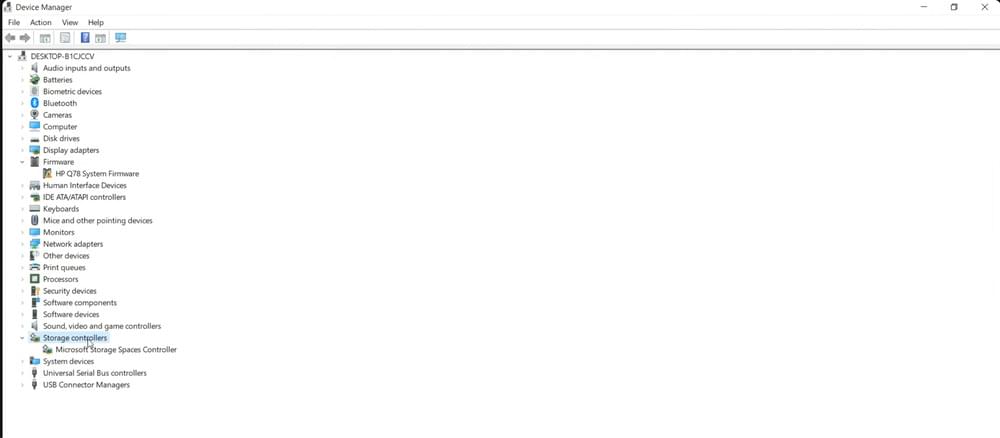
- Right-click a device you want to update, and select ‘Update driver’. Try updating drivers like graphics, network and storage drivers on priority.
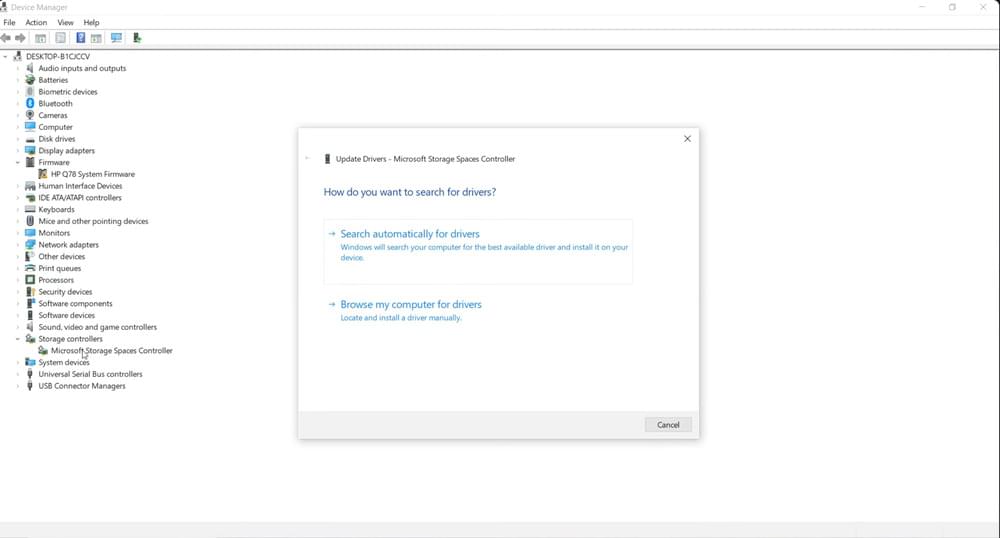
- Choose ‘Search automatically’.
- Windows will look online to find the updated driver and install it.
- If no new driver is found, and you realise that the current driver is outdated, then manually download the latest driver from the manufacturer’s website (ONLY) and install it.
- Repeat these steps for other outdated device drivers.
For third-party device driver updates, check their website. The best way to avoid outdated drivers in future is to use NVIDIA, AMD to keep your GPU drivers updated.
Run Windows memory check
Your computer’s RAM is its memory that is actively used by the processor. Faulty RAM cards underperform and cause blue screen Kernel-level errors.
Windows includes a built-in memory test. Here’s how you can run a sanity check for Windows RAM.
- Select ‘Run’ from ‘Start’ menu or press ‘Windows + R’
- Type ‘Windows memory diagnostic’ or simply type mdsched.exe. They both open the same window.
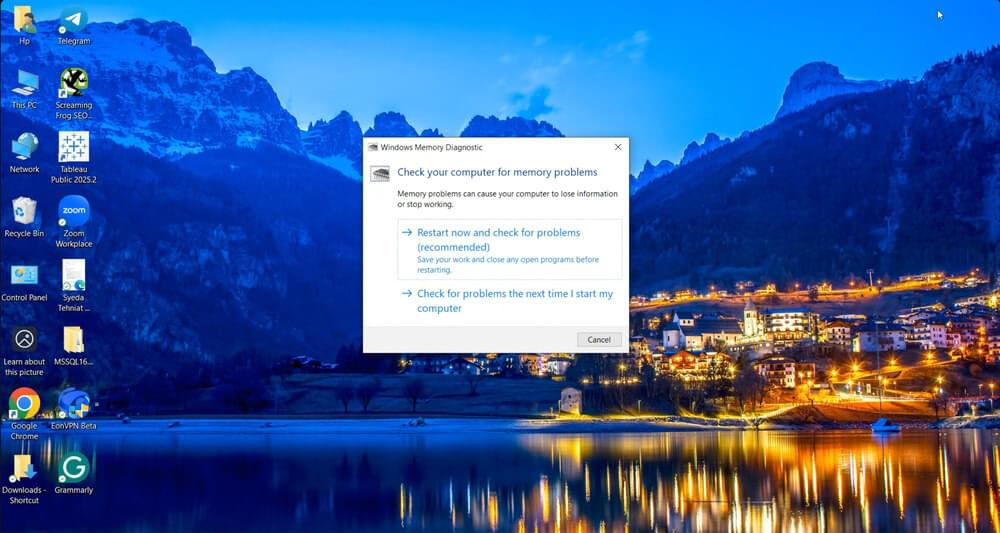
- Choose ‘Restart now and check for problems’ option.
Your PC will reboot and run memory tests automatically. This can take several minutes. Once the scan completes, Windows will tell you if it found any issues. If it does, look for specific error codes or messages to figure out what to fix next.
Bad RAM does not always crash the system instantly. Sometimes it only shows up under load, which is why this error can feel random.
Check for corrupt system files
Windows system files can get damaged due to sudden shutdowns, disk errors, or failed updates. When kernel files are affected, this error appears.
You can use two built-in tools, SFC (System File Checker) and DISM (Deployment Image Servicing and Management) to spot and repair corrupted files. To run SFC
- Click the Start menu and type ‘cmd’. Select ‘Run as Administrator’.
- Type: sfc /scannow
- Press Enter
Wait for it to finish. Don’t interrupt it. If SFC finds and fixes corrupted files, restart your PC to apply the repairs.
DISM utility is used for deeper scans to check Windows image for any malfunctioning.
In the Command Prompt, type:
DISM /Online /Cleanup-Image /RestoreHealth
For Windows 8, in some case you might have to use following prompt:
DISM /Online /Cleanup-Image /RestoreHealth /Source:D:\sources\install.wim /LimitAccess
DISM pulls clean files from Windows Update and repairs deeper system issues. Restart after both commands finish.
Scan Hard-disk memory for errors
A failing hard drive can corrupt data as Windows reads it. CHKDSK utility is provided by Windows OS to scan and fix it for any file system errors.
Run Check Disk to scan and repair file system issues.
Steps:
- Click the Start menu and type ‘cmd’. Select ‘Run as Administrator’.
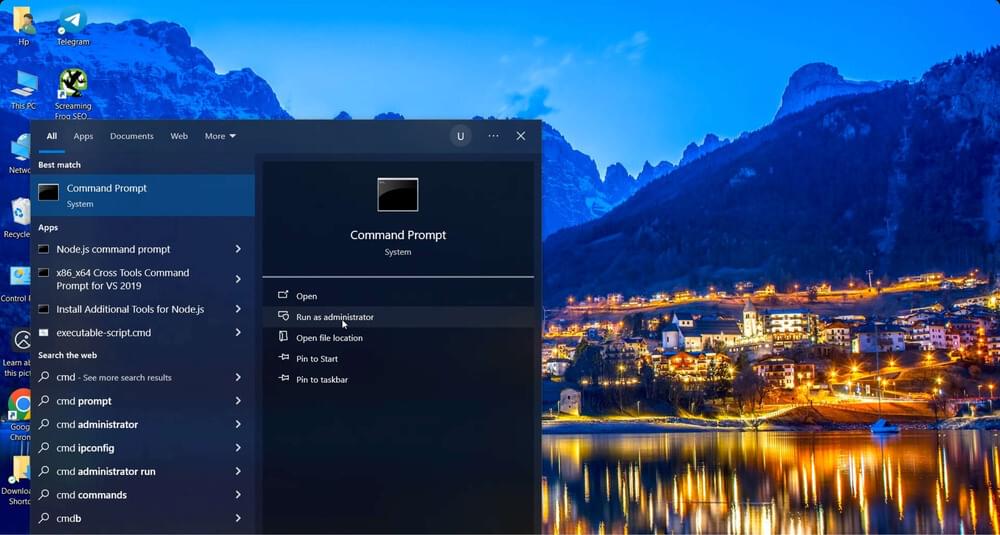
- In the Command Prompt window, type: chkdsk /f /r and press Enter.
- Type Y to confirm to scan on the next reboot.
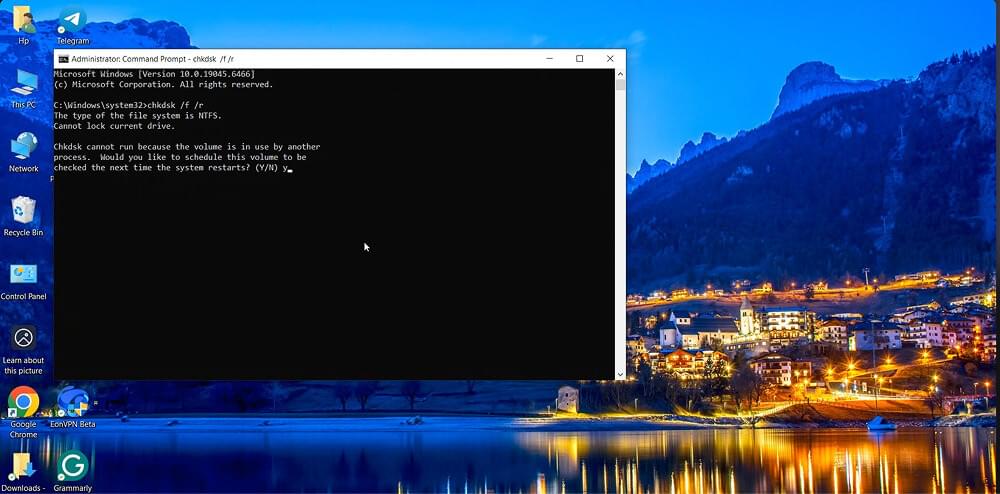
- Restart your PC.
This scan can take a while. Let it finish. It will locate the bad sectors in your hard drive and will try to recover data. If you hear clicking sounds or see repeated disk errors, back up your data. Hardware failure may be coming. You can try the commands chkdsk /f and chkdsk /r separately too.
Run the virus scan
Computer viruses and malware can easily cause you Kernel Security Check Failure errors. You can use third-party antivirus but make sure it is up to date.
Windows 10 and Windows 11 OS also have built-in virus scanning options.
- Click the Start menu and type ‘windows’.
- Open ‘Windows Security → ‘Virus&Threat protection’ → ‘Quick scan’.
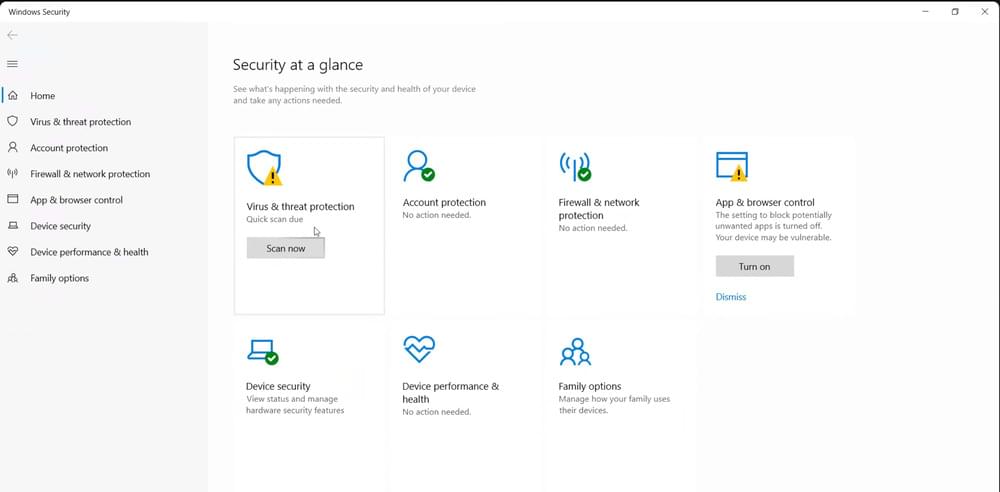
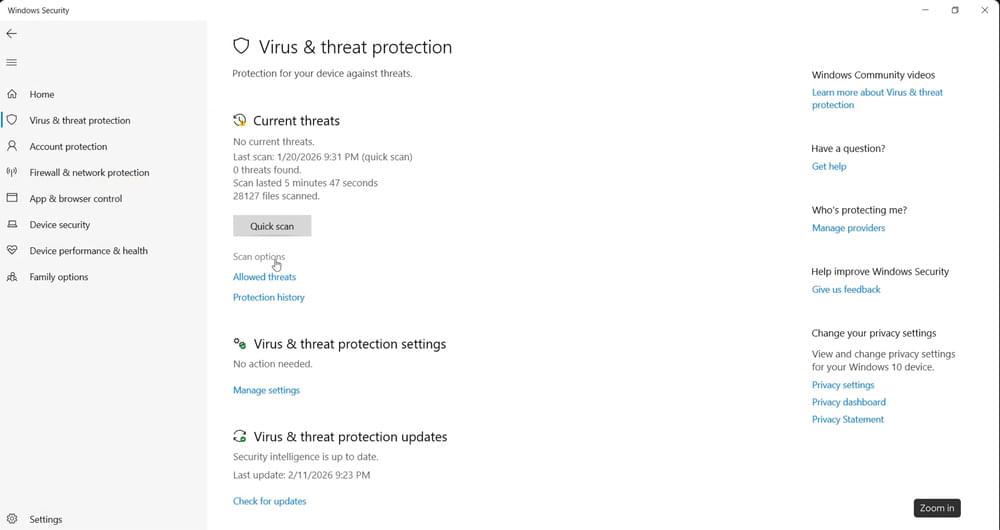
- If nothing shows, click ‘scan options’ and run a full virus scan.
If you are using Windows 8, open ‘control panel’ → ‘Windows defender’. Go to ‘Home’ tab and run a full or quick scan.
Third-party antivirus tools often hook deep into the kernel. When they conflict with drivers or updates, blue screens with Kernel_Security_Check_Failure happens. In these cases, temporarily uninstall the antivirus and use ‘Windows Defender’ instead. Restart and test system stability. If the BSOD disappears, the antivirus was likely the cause of Kernel Security Check Failure.
Reinstall Windows
Reinstalling Windows is the last resolve you can make if you have tried everything else and still see the BSoD stop code 0x139. Sometimes the problem isn’t anything but Windows.
A complete reinstall will confirm if the issue is OS related or hardware related because the reinstall can only fix problems caused by corrupted system files, outdated drivers, or conflicting software but not ones caused by faulty hardware. Here’s what to do to reinstall Windows.
- Back up your files.
- For Windows 8, use a Windows ISO and create a bootable USB with a tool like Rufus.
- For Windows 10 and 11, download the Windows Media Creation Tool and follow the reinstallation steps. OR go to Settings → System → Recovery → “Fix problems by reinstalling Windows” → “Reinstall now” (or “Reset this PC”).
If the Kernel Security Check Failure error continues to occur after reinstalling the Windows, one of your hardware components is wrecked.
How to prevent kernel security check failure in future
If you really want to avoid kernel security check failure blue screen, here are a few steps to keep you ahead of it.
- Run regular system maintenance scans. Defrag, disk cleanup and software updates are mandatory.
- Keep your drivers updated. Outdated drivers are the top cause of system crashes. Update them regularly.
- Install and run antivirus software regularly.
- Update your operating system to avoid kernel issues.
- Avoid overclocking the processors. Overclocking increases heat and instability of your PC processor. Avoid doing the BIOS tweaks unless you know what you are doing. Preferably, stay on factory settings.
- Regularly perform hardware checks to check the health of RAM and SSD.
- Back up your data to avoid any inconvenience caused by any blue screen of death (BSoD).
- Avoid messing with system files or registry files.
Conclusion
Kernel Security Check Failure is fixable. In most cases, it occurs due to bad drivers, memory issues, or corrupted system files.
Start simple. Update drivers, run PC in safe mode, run memory scans and scan for corrupted files or viruses. Do not jump straight to reinstalling Windows. Follow the steps in order and test after each one.
If the error keeps returning even after memory checks and clean installs etc, that’s when deeper hardware diagnostics are needed. But for most people, one of these eight solutions does the job. Take it step by step, and you will get your system stable again.
To prevent the “Kernel Security Check Failure” error, regularly scan for viruses, delete unused files, and keep your drivers and Windows OS up to date. These maintenance steps can help maintain the stability and security of your Windows PC.
FAQs
What is Windows Kernel?
The Windows kernel controls memory, hardware, drivers, and system-level processes. When Windows runs a security or integrity check and finds something is wrong, it stops all the OS functions to prevent damage. That is when you see this (infamous) blue screen.
Can bad RAMs cause Kernel Security Check Failure?
Yes. Faulty or failing RAM can cause Kernel Security Check Failure BSODs because Windows may detect memory corruption or invalid data in system structures. Testing RAM with tools like Windows Memory Diagnostic can help identify such issues.
How to fix kernel security check failure?
The Kernel Security Check Failure error is caused by outdated or corrupted drivers, damaged registry files, viruses, or faulty Windows updates.
You can update your device drivers, run the PC in safe mode, check the disk for errors, reset Windows, or reinstall the Windows operating system to fix this error.
How do I turn off kernel security?
In the Start Menu, search for “Turn Windows features on or off” and click it. Scroll down to find “Kernel Mode Hardware Enforced Stack Protection” and ensure its checkbox is selected. Click “OK.” Restart your system to apply them. These changes are not advised however.
What does stop code Kernel_Security_Check_Failure 0X139 mean?
The stop code kernel security check failure bug check has a value of 0x00000139, and indicates that the kernel detects the corruption of a critical data structure. It is a protective mechanism to stop further damage or data loss in your PC system when something goes seriously wrong.
Is kernel security check failure serious?
Yes, Kernel security check failure is one of the many types of BSOD that indicates a significant problem.
How do I reinstall Windows?
There are a few ways to reinstall Windows. The simplest is through Windows settings on Windows 10 & 11:
- Go to Settings → System → Recovery.
- Under “Fix problems by reinstalling Windows”, select “Reinstall now” (or “Reset this PC”).
- Follow the on-screen prompts, e.g. choose whether to keep your files or remove everything etc.
- Windows will download and reinstall itself, then reboot.